Using the viewer
Cells, molecules and an image in one 3D scene. Everything you change — the gene, the cell types, the image settings — is kept in the page's link.
Finding your way around
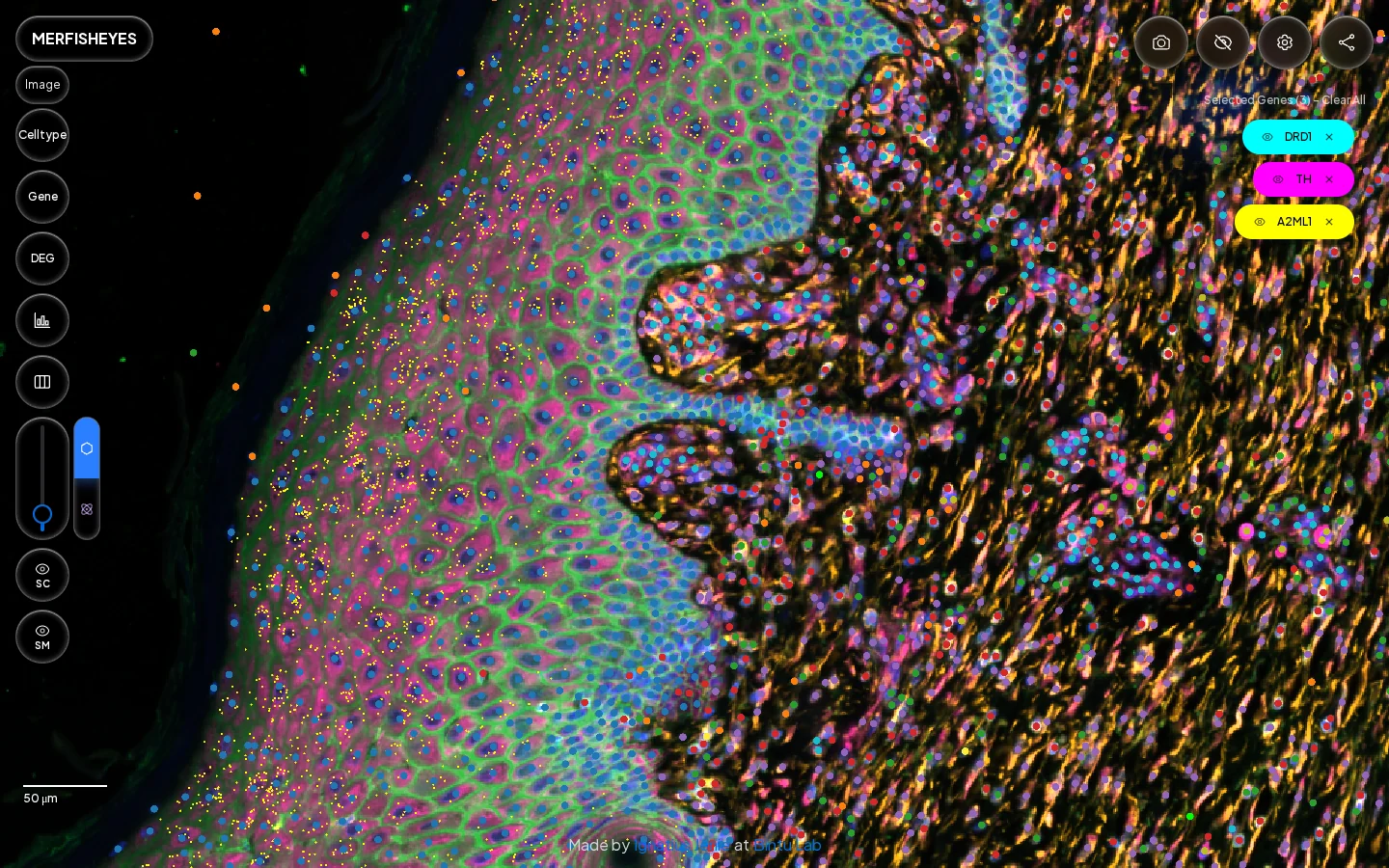
- 1Image — Show or hide the image, and for each channel whether it is on, its colour, and its lower and upper bound.
- 2Celltype — Colour by a cell type, cluster or any other column; tick types to highlight them.
- 3Gene — Colour the cells by one gene's expression. With molecules shown, it also picks molecule genes.
- 4DEG — The genes that set one cell type apart from the rest, or from another type.
- 5Plot — Boxplots, histograms and cell counts in a panel you can move and resize.
- 6Split screen — Open a second dataset beside this one.
- 7Point size — How big the dots are drawn.
- 8Cells / molecules — Whether the size slider and the gene picker act on the cells or the molecules. Shown when molecules are overlaid.
- 9SC · SM — Show or hide the cells (SC) and the molecules (SM).
- 10Camera controls — 2D or 3D, rotation, flips, reset the view, and a screenshot or thumbnail.
- 11Hide UI — Hide every control for a clean screenshot. Press H to toggle.
- 12Advanced settings — Further display options.
- 13Copy link to this view — A link that opens exactly what you see, image settings included.
- 14Selected genes — The molecule genes on screen. The eye hides one (⌘-click shows only it), × removes it, Clear All removes all.
- 15Scale bar — The length shown, in the data's units.
| To… | How |
|---|---|
| Rotate | Left-drag |
| Pan | Right- or middle-drag |
| Zoom | Mouse wheel |
| Read a cell | Hover it: its cell type (and expression, when a gene is selected) |
| Select a cell type | Double-click one of its cells |
| Hide the controls for a screenshot | Press H |
Single cell viewer
- Colour by gene — a blue-white-red gradient, scaled to the 95th percentile. Drag the numbers on the scale bar to change its range, and switch it between Raw and Log (see raw counts or log values).
- Colour by a column — cell types, clusters or any metadata. Columns with up to 100 values get one colour each and can be filtered; columns with more are shown as a gradient.
- Both at once — select a gene and some cell types to see the gene only in those cells; the rest are greyed out.
- DEG — the genes that set one cell type apart from the rest, or from another cell type, ranked by fold change. See how DEGs are calculated.
- Plot panel — boxplots and histograms of a gene per cell type, cell counts per type, and histograms of numeric columns. Group by a second column (e.g. treatment within each cell type), cap the axes, and download the numbers as CSV.
Single molecule viewer
- A few genes are shown when it opens.
- Select genes by searching and ticking them; each gene is its own colour, loaded when you pick it.
- 2D / 3D — a top-down view, or full rotation.
- Point size for all genes, and for each gene on its own.
Molecules and an image over your cells
A single cell dataset can carry its molecules and an image. They are linked when you upload them together, and an owner can link them later with the Overlays button: pick one of your molecule datasets and one of your images.
The Image button shows or hides the image and sets, for each channel, whether it is on, its colour, and its display range: values at or below the lower bound draw black, at or above the upper bound full colour.
Two datasets side by side
Split screen opens a second dataset next to the first — single cell or single molecule, in any combination — with the camera and the selection kept in step between the two.
Links keep your view
The page's address follows what you do: the selected gene, column and cell types, the molecule genes, and the image's channels, colours and bounds. Copy link to this view (top right) and anyone opening it sees the same thing.